Saturday, January 28, 2012
Try ICS Emulator
1. Download the SDK
2. Extract the Zip to a folder on your desktop
3. Click SDK Manager.exe
4. Put a check in the box for Android 4.0, click Install Packages on bottom right
5. Go back into the Android folder on your desktop, open AVD Manager.exe
6. Click New
7. Give it a name, change the target to Android 4.0
8. Click Create AVD
9. Hit Start, wait five minutes or more.....be really patience...
Start playing ICS on my PC.... :)
Thursday, December 01, 2011
ICS for I9000
Continue reading here... XDA
Tuesday, November 29, 2011
Samsung KIES for windows
Download KIES 2.1.0 here...
Why should I have KIES??
-
Connect mobile without wires
Connect a mobile to Kies via Wi-Fi and Sync content.
Kies via Wi-Fi lets you enjoy Kies in a remarkably convenient way.
* It is available for the supported models only, and some functions are limited while Wi-Fi connection.
-
Keep your mobile updated
When connected, Kies automatically notifies you of new firmware version.
Make your mobile improved with the latest firmware.
-
Sync contacts with Outlook or Google, Yahoo
Add and edit contact of mobile on Kies conveniently. Also, sync contacts with those of Outlook, Google or Yahoo.
-
Enrich music life with mobile
Make your own favorite music playlist and Sync with mobile. All the music want to listen to entertain you wherever you are. -
Keep taken photos and videos from mobile to PC
Safely store valuable photos, videos you’ve taken and feel your happy moments in Kies.
-To run ODIN and execute it successfully, you need to KILL all KIES process inside Task Manager.
KIES and ODIN cannot run at the same time.
-Latest firmware update base on region. Malaysia sometime a bit late in software update. Be patient.
-For technical guy you may continue update base on the leaked ROM.
Remember to restart after KIES installation. This to make sure all the drivers installed and configured properly.
Running on Windows 7 64 bits
All ready... :) ...I'm using Hong Kong version ZSKK1 2.3.6
USB drivers connected ready for file transfer between PC and phone OR become a modem for Tethering.
KIES in task manager
Things you can copy from phone to PC or PC to phone.
Things you can back-up
You can Sync.... KIES improve much from previous version... more integrated with your PC... This is good for PC users.
Connect KIES via WiFi
Run KIES on your PC first.
Ready to Sync over the WiFi...
Friday, November 18, 2011
I9000 running ICS
I9000 running ICS? Anyone?
JVU battery test almost done and believe it or not, it's been more than 7 days. SGS rock!
Tuesday, November 15, 2011
How to ROOT+CWM Galaxy Note. CF-Root
Note:
- CF-Root added CWM as and extra than basic ZergRUSH ROOT exploit
Download CF Root Flasher. You just need "zImage" of the specific kernel (KJ6 or KK1, etc..)
CF-Root 5.0 main features
- The kernel is fully stock and taken from the original firmware
Added
- Root
- Busybox v1.19.2-cm71
- ClockWorkMod Recovery 5*
- Custom CWM Manager*
- Custom boot / init scripts*
- Custom boot animations*
*Added by CF-Root
Two batch files available. "already-rooted.bat" and "not-rooted-yet.bat". You should know your phone status. New phone from factory mean not-rooted.
The folder instruction should be good enough. Extract zImage and copy to the folder.
Download specific kernel here.
- CF-Root-SGN_XX_OXA_KJ1-v5.0-CWM4.zip
- CF-Root-SGN_XX_XEN_KJ4-v5.0-CWM4.zip
- CF-Root-SGN_ZS_MUL_KJ6-v5.0-CWM5.zip
- CF-Root-SGN_ZS_MUL_KK1-v5.0-CWM5.zip
- CF-Root-SGN_XX_AUT_KKA-v5.0-CWM5.zip
- CF-Root-SGN_XX_ODD_KL3-v5.0-CWM5.zip
- CF-Root-SGN_XX_DBT_KL7-v5.0-CWM5.zip (zergRUSH Fail. Use Mobile Odin)
- CF-Root-SGN_XX_OXA_KL8-v5.0-CWM5.zip (zergRUSH Fail. Use Mobile Odin)
- CF-Root-SGN_XX_OXA_LA1-v5.0-CWM5.zip (zergRUSH Fail. Use Mobile Odin)
1. Extract ZIP and TAR until you see the "zImage" file.
2. Copy zImage to zImage folder
3. Run "not-rooted-yet.bat"
4. DONE.
Note:
DX = Indonesia, Malaysia, Philippines, Singapore, Vietnam
ZS = Hong Kong
XX= Europe kernel
Continue reading
Wednesday, November 09, 2011
How to root I9000XWJVU
Download Easy Rooting Toolkit
Follow the instruction on the command prompt or screen above.
TODO
1. Enable "USB DEBUGGING". Menu>Settings>Applications>Development
Note: Make sure you have installed ADB drivers for your device (it inside Andorid SDK or KIES)
2. After enabling "USB DEBUGGING" connect phone to pc and let it download and install all the drivers
3. Enable "UNKNOWN SOURCES". Menu>Settings>Applications
Note: [OPTIONAL] increase screen timeout to 10 minutes
4. Connect USB cable to PHONE and PC
5. Run "runme.bat". DONE
Your phone will be rooted and superuser installed :)
Thank to $omator. Continue reading here
How to install I9000XWJVU
Latest firmware: I9000XWJVU/I9000TMNJV4/I9000XXJVT/I9000XWJVU
Modified: 21.10.2011 15:16:16
How to install JVU
1. Download I9000XWJVU
2. Install using ODIN.
Note:
-Make sure your phone in the download mode (Volume Down+Home+Power button)
-Do not re-partition since you are on gingerbread
-You files, data and downloaded application will not be deleted.
Done!
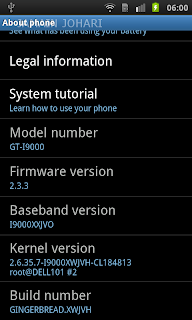
At the end of the process you will get the above About Screen.....
Note:
- No change log of this at the moment
- Done Factory Reset just to make sure I have clean stock again to test. Data and apps will be deleted.
How to ROOT JVU click here
Continue reading here (you have to login)
Friday, October 21, 2011
My Phone SGS I9000
With new RED cover.... :)
Update to nightly version...after a day of using stable version... CM7.1 fast and stable...but the battery life seems like shorter than stock+semaphore
Portrait home screen
Landscape clock
Landscape HOME :)
Semaphore JVT and DarkyROM JVT Base RE
Waiting for more leak from Samsung or are we waiting for Ice Cream Sandwich?
How to install CyanogenMod 7.1
I assume that you are from stock kernel and not rooted.
TODO:
1. Download CM7.1 stable version
2. Backup you current application to APK file format and copy to your PC. You need it after CM7 installation completed. How to backup file to APK? Click here
How to install CM7.1?
1. Root your device and install ClockworkMod Recovery.
If you do not know how to root your current ROM. Try steps inside two links below. It will ROOT and install ClockworkMod Recovery by default.
- http://jjpda.blogspot.com/2011/10/how-to-install-i9000xxjvt.html
- http://jjpda.blogspot.com/2011/10/how-to-root-android-235-i9000xxjvt.html
2. Copy "update-cm-7.1.0-GalaxyS-signed.zip" into you phone SD Card. Rename it to "update.zip"
3. Reboot into Recovery using 3-button-combo (Volume Up+Home+Power button)
4. Do a backup! Best practise
5. WIPE (wipe data/factory reset + wipe cache partition + Dalvik)
6. Install "update.zip" from internal sdcard using Recovery Mode
7. DONE. Sit back and relax
This is what you will get.
Note:
- You will have clean CyanogenMod 7.1. Very FAST!
- No Google or Samsung apps. Need to download and install separately
- Do not use new market. Download Old Market and copy into you phone SD Card.
- Remove "marketupdater.apk" and "vending.apk" using DarkyROM tool. Install this first.
Uninstall "marketupdater.apk" and "vending.apk"
Install "market.2.3.4.apk". DONE. You will have Old Market and continue your download business. :)
You can't download google apps from old market? You did not see most of the google apps? I will show you how to download it after the break... coming soon
Thursday, October 20, 2011
CyanogenMod 7.1 video
After looking at this video, I really need to try and feel it myself. Do you like it?
This CyanogenMod 7.1 stable version and it's mine :) First time recording my work...
Favorite features of CM7.1
- Android 2.3.7
- Bluetooth Mouse support
- Swipe-to-clear notifications (one at a time, ala webOS)
- Revoke app permissions
- Latest SuperUser app
- Control brightness by sliding on the status bar. Perhaps taken from the Galaxy S2
- Launch apps via Gestures in the background
- Touch to Focus in the Camera
- Native Screenshot, finally!
- Bluetooth Tethering
- Improve ADWLauncher scrolling/zoom performance
- Option to disable vibration while in-call
- Improve notification swipe-to-clear
- Wake on volume key option
- Support for revoking application permissions
- Control brightness by sliding on statusbar
- Option to hide hold button during call
- Support for launching apps via gestures in the background
- Screenshot feature via power menu
- Mute camera shutter option
Thursday, September 15, 2011
What's new in Android 2.3.3, 2.3.4, 2.3.5, 2.3.6
- Android 2.3.3 is a small feature release that adds several improvements and APIs to the Android 2.3 platform.
2.3.4
- Added support for voice or video chat using Google Talk.
2.3.5
25 Jul 2011
- Brought improved network performance for the Nexus S 4G, among other fixes and improvements.
- Fixed bluetooth bug on Samsung Galaxy S
- Improved Gmail application
- Save bandwidth and battery by only syncing priority mail
- Use label notifications to mash up filters, labels, and ringtones
- Remember ‘Show Pictures’ for senders
- Turn off sticky message actions in landscape or all orientations
- Better TalkBack support for accessibility
- Performance improvements
- Voice search bug fixed.
Note: For sure, each release will include bug fixes as well....let's hope we could get Ice Cream Sandwich on our SGS :)
Friday, June 10, 2011
Android 2.3.4 hits Galaxy S GT-I9000 !!
Build date is June the 3rd.PDA: XXJVP
Modem: XXJVP
CSC: Multi
Password: samfirmware.com
[ROM][2.3.4]I9000XXJVP (GINGERBREAD)
1.Extract I9000XXJVP
2.Open ODIN. (And close Kies, if you have it open. It is important to have ODIN open BEFORE connection the phone via USB!)
3.Select the PDA,pit,Modem,CSC file in Odin.
4.Turn the phone into the download mode by pressing and holding VolumeDown+Home+Power.
5.Connect your phone with your computer and wait until the drivers are installed.
6.When the drivers are installed, click Start.
7.The phone will be flashed and once it’s finished, it will boot up. (Do NOT disconnect the usb-cable, remove the battery or otherwise interrupt this process!)
8.You have successfully flashed your phone.
I'm waiting for ficeto DarkyROM - Available NOW!
http://www.darkyrom.com/community/index.php?threads/base-ficetos-jvp-base-rom.3519/
Screen shots coming soon..... tungggguuuuu
Monday, May 16, 2011
Android important Link
1. http://www.dkszone.net/install-android-2.3.3-gingerbread-samsung-galaxy-s-i9000-leaked-rom
2.HOW TO ROOT
http://www.dkszone.net/root-samsung-galaxy-s-android-2.3.3-gingerbread-i9000-xxjvk-rom
3. CWM
4. DARKY ROMS THAT WORKS 20110513-ALL SAMSUNG APPS REMOVED.
5. GINGERBREAD KERNEL IN EXT4 (SUPERCURIO)
http://forum.xda-developers.com/showthread.php?t=975349
6. THEME
http://forum.xda-developers.com/showthread.php?t=1042395
Saturday, May 07, 2011
Maxis APN for SGS I9000

Useful after flashing to new firmware. If you did not setup this, you will not be able to browse internet via 3G services.
Maxis APN. 3G WAP & MMS CONFIGURATION
1. Press Menu > Settings > Wireless Controls > Mobile networks (Android Phone)
2. Select Access Points Names
3. Press Menu button > Select New APN
4. Enter the following details for WAP settings:
.Name : Maxis
.APN : (NOTE: unet for 3G or net for GPRS)
.Proxy : 202.75.133.49
.Port : 80
.Username: maxis
.Password : wap
.Authentication Protocol:
5. Scroll further down.
6. Enter the following details for MMS settings :
.Server : Maxis MMS
.MMSC : http: //172. 16.74.100:10021/mmsc
.MMS proxy : 202.75.133.49
.MMS port : 80
.MCC : 502
.MNC : 12
.Autehntication Type: Not set
.APN Type : Internet+MMS
Menu>SAVE
To test it out. Disable wireless and try to browse internet via browser
SGS I9000 Upgrade to I9000XWJVH

Are you eager to upgrade to latest I9000XWJVH.
I'm using Maxis SGS. I have no problem flashing to latest firmware.
-It fast
-Snappier
-Smooth scrolling in email apps
-Fast and Smooth browser
-Better battery life
-Better sound quality
What you should have:
1. ODIN . Download ODIN + PIT (512) . Download PIT(512)
2. I9000XWJVH_XEEJV3|2.3.3|2011 May|Download Link1 or Link2
1.Double click to extract I9000XWJVH
You should have these
a. CSC_XEE_JV3.tar.md5
b. PDA_XWJVH_Sbl.tar.md5
c. PHONE_XXJVO.tar.md5
2.Open ODIN. (TODO: Task manager. Kill any KIES related files)
a. Odin3 v1.3.exe
3.Select the PIT, PDA , MODEM, CSC file in Odin.
PIT file: s1_odin_20100512.pit
4.Turn the phone into the download mode by pressing and holding VolumeDown+Home+Power.
5.Connect your phone with your computer and wait until the drivers are installed.
6.When the drivers are installed, click Start.
7.The phone will be flashed and once it’s finished, it will boot up. (Do NOT disconnect and interrupt this process!)
8.You have successfully flashed your phone.
PDA: XWJVH
MODEM: XXJVO
CSC: XEEJV3
Build Date: Wed May 4 18:03:59 KST 2011
Note:
1. Don't forget to setup you APN. See my next post
2. This update 2.3.3 is not for Galaxy SL I9003 or even to another similar looking phones, if you proceed and update with the same then we are not responsible for the outcome of the update on your phone, it can even brick your phone.
Others:
Lagfix + EXT4


